
Why Are My Jobs Not Showing in Google Search #
If your jobs are not showing in Google Search, don’t worry — this is almost always a Google-side process rather than a JobWP issue. JobWP automatically adds Google JobPosting structured data to every listing, but Google still needs to crawl, index, and process each job detail page before it appears in search results.
This guide walks you through exactly what to check and what to do.
Understanding How Google Jobs Works #
When you publish a job listing in JobWP, two things happen automatically:
- A job detail page is created with a unique URL
- Google JobPosting structured data is added to that page
However, Google still needs to:
- Discover your job detail page
- Crawl and read its content
- Validate the structured data
- Index the page in its database
- Display it in Google Jobs results
Each of these steps takes time and happens on Google’s own schedule — not yours. This is normal and expected behaviour.
Step 1 — Check if Your Job Pages are Indexed #
The most common reason jobs don’t appear in Google Search is that the job detail pages haven’t been indexed yet.
How to check:
- Go to Google Search Console
- Paste your job detail page URL into the search bar at the top
- Press Enter
What the result means:
- “URL is on Google” — the page is indexed ✅ Move to Step 2
- “URL is not on Google” — the page is not indexed yet ❌ Follow the fix below
Fix — Request indexing manually:
If the page is not indexed:
- Click Request Indexing in Google Search Console
- Google will add the page to its crawl queue
- Indexing typically completes within a few days
Pro tip: For a brand new site or a site with many new job listings, submit your sitemap to Google Search Console. Go to Search Console → Sitemaps and submit your sitemap URL (usually yourdomain.com/sitemap.xml). This helps Google discover all your job pages faster.
Step 2 — Validate Your Google Jobs Schema #
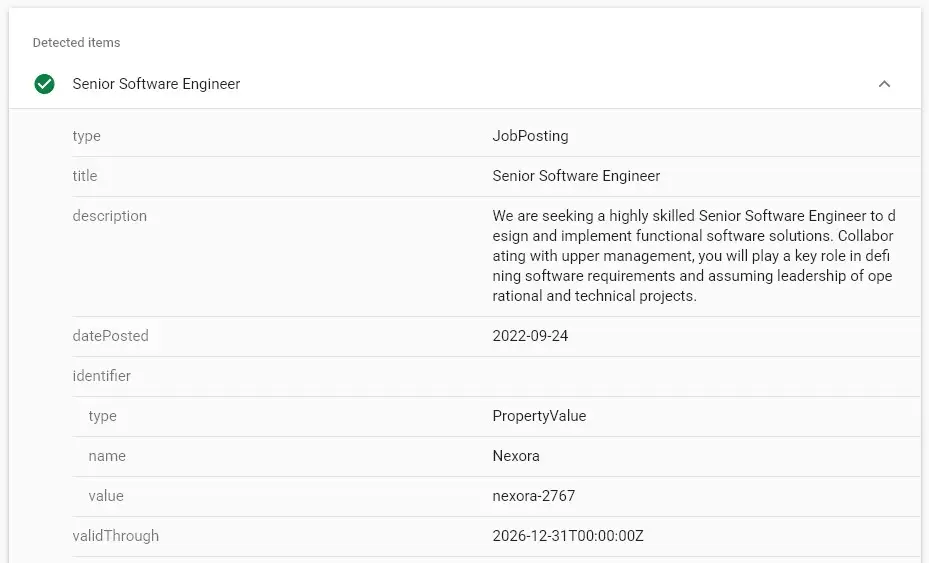
Even if your pages are indexed, Google Jobs requires valid JobPosting structured data to display your listings in the dedicated jobs panel. JobWP adds this automatically, but it’s worth verifying it’s working correctly.
How to validate:
- Go to Google Rich Results Test
- Paste your job detail page URL
- Click Test URL
What the result means:
- ✅ “JobPosting — 1 valid item detected” with a green tick — your schema is perfect. Google will pick it up on its next crawl. No action needed.
- ⚠️ Warnings — your schema has minor issues that may affect how Google displays your listing. Check the warning details and refer to our other docs for fixes.
- ❌ Errors — your schema has issues that may prevent Google from showing your listing. Contact JobWP support with a screenshot of the error.
Step 3 — Wait for Google to Process Your Listings #
If both checks above pass — pages are indexed and schema is valid — everything on your end is correct. You simply need to wait for Google to process and display your listings.
Typical timelines:
| Situation | Expected time |
| New job on an established site | 1–3 days |
| New job on a new site | 1–2 weeks |
| After requesting indexing manually | 2–5 days |
| After fixing a schema error | Up to 2 weeks |
Google sets its own crawl and processing schedule — there is no way to force your jobs to appear faster beyond requesting indexing manually.
Common Reasons Jobs Don’t Appear in Google Search #
The job expired or the deadline passed
JobWP automatically hides jobs when their deadline passes. If a job is no longer visible on your job board, Google will also stop showing it in search results.
The job detail page has a 404 error
If clicking a job listing shows a 404 error, Google cannot crawl or index the page. Fix this by going to Settings → Permalinks → Save Changes in WordPress. See our full guide on fixing 404 errors on job detail pages.
The site is new and hasn’t built crawl authority yet
Google prioritises crawling established sites. A brand new WordPress site may take longer for Google to discover and index all pages. Submitting a sitemap helps speed this up.
The salary field contains “Negotiable” or other text
Google’s schema requires a numeric salary value or no salary at all. Typing “Negotiable” in the salary field causes a schema error. See our guide on handling negotiable salary in Google Jobs schema.
Google’s Jobs panel is not available in your country
Google Jobs is not available in every country. If your site targets a region where Google Jobs isn’t supported, your listings won’t appear in the dedicated jobs panel — though they may still appear in regular search results.
Quick Checklist #
Before contacting support, work through this checklist:
- ☐ Job detail page is indexed in Google Search Console
- ☐ Rich Results Test shows JobPosting as a valid item with green tick
- ☐ Job deadline hasn’t passed
- ☐ Job detail page doesn’t show a 404 error
- ☐ Salary field is either blank or contains a numeric value
- ☐ Google Jobs is available in your target country
If all items are checked and jobs are still not appearing after 2 weeks — contact JobWP support with your Google Search Console screenshots and Rich Results Test results.
 Download JobWP free on WordPress.org → wordpress.org/plugins/jobwp
 View live demo → wpjoblisting.com/demo
 Explore Pro plans from $49.99/year → wpjoblisting.com/pricing-faq


