
Learning how to create a job board page in WordPress is easier than you think. With JobWP, the whole process takes less than 5 minutes — no coding skills required.
Step 1 — Install and activate JobWP #
If you haven’t installed JobWP yet:
- Go to Plugins → Add New in your WordPress dashboard
- Search for JobWP
- Click Install Now then Activate
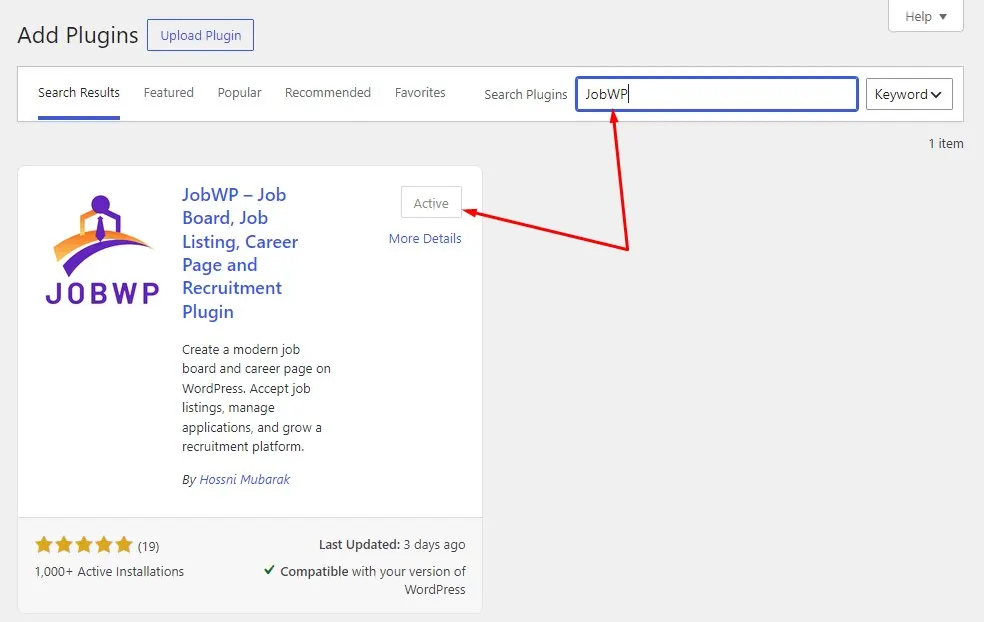
Once activated you’ll see a WP Jobs menu item in your WordPress dashboard sidebar.
Step 2 — Create your job board page in WordPress #
-
- Go to Pages → Add New
- Give your page a title — for example: Jobs, Careers, or Job Board
- In the page editor, add the following shortcode: [
jobwp_listing] - Click Publish
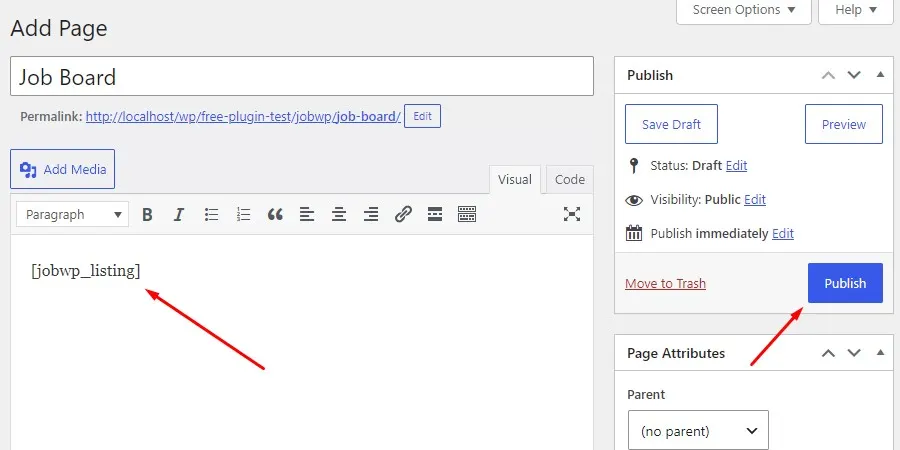
That’s it — your job board page is live.
Step 3 — Add your first job listing #
- Go to WP Jobs → Add New Job in your dashboard
- Fill in the job details — title, description, category, type, location, and deadline
- Click Publish
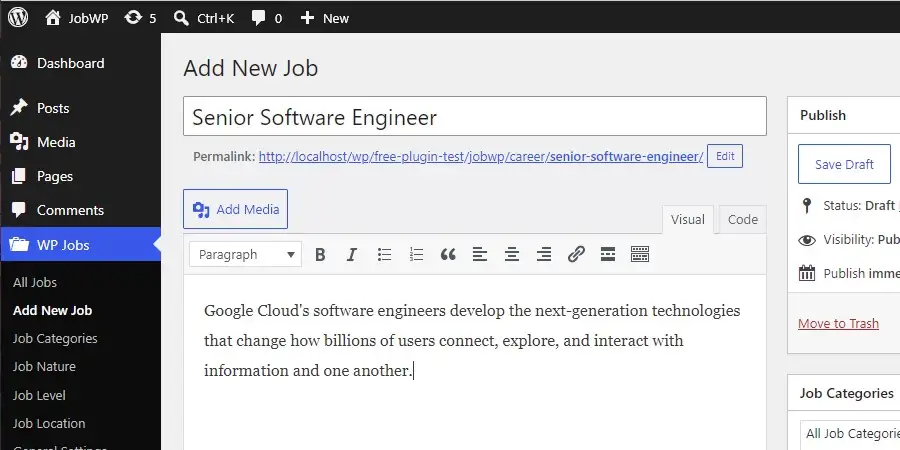
Your job will appear instantly on the job board page you created in Step 2.
What your job board includes out of the box #
Once the page is live, visitors can:
- Browse all active job listings in list or grid view
- Search and filter by keyword, category, job type, and location
- Click any listing to view the full job details
- Apply directly from the job detail page
Customise your job board with shortcode options #
You can customise the job board display using optional shortcode parameters:
| Shortcode | What it does |
[jobwp_listing] |
Display all jobs |
[jobwp_listing limit="5"] |
Limit to 5 jobs |
[jobwp_listing layout="grid"] |
Display in grid view |
[jobwp_listing layout="list"] |
Display in list view |
[jobwp_listing hide_search="on"] |
Hide the search panel |
[jobwp_listing category="Design"] |
Show jobs from one category |
Job detail page showing a 404 error? #
If clicking a job listing shows a 404 error, go to Settings → Permalinks in WordPress and click Save Changes. This refreshes your rewrite rules and fixes the issue immediately.
For salary best practices including how to handle negotiable salaries without breaking Google schema, see our dedicated guide.
 Download JobWP free on WordPress.org → wordpress.org/plugins/jobwp
 View live demo → wpjoblisting.com/demo
 Explore Pro plans from $49.99/year → wpjoblisting.com/pricing-faq


