
Getting a 404 error on a job detail page in WordPress is one of the most common issues after installing JobWP — and the fix takes less than 30 seconds. This guide shows you exactly how to fix the 404 error on job detail pages in WordPress without any technical knowledge.
Why Does This Happen? #
The most common way to fix a 404 error on a job detail page in WordPress is to refresh your permalink settings — but first, let’s understand why this happens. When JobWP is installed and activated, WordPress needs to register new URL patterns called rewrite rules for job detail pages. Sometimes WordPress doesn’t do this automatically — especially if:
- The plugin was activated while you were already on the Permalinks settings page
- Another plugin conflict occurred during activation
- Your permalink structure was recently changed
- You migrated your site to a new server or domain
The Fix — How to Fix 404 Error on Job Detail Page in WordPress #
This single step resolves the 404 error in almost every case:
- Go to Settings → Permalinks in your WordPress dashboard
- Don’t change anything
- Simply click Save Changes
That’s it. WordPress regenerates all rewrite rules including JobWP’s job detail page URLs. Go back to your job board and click any listing — the 404 error should be gone immediately.
Still Getting a 404 After Saving Permalinks? #
If the issue persists after saving permalinks, try these additional steps in order:
Check your permalink structure #
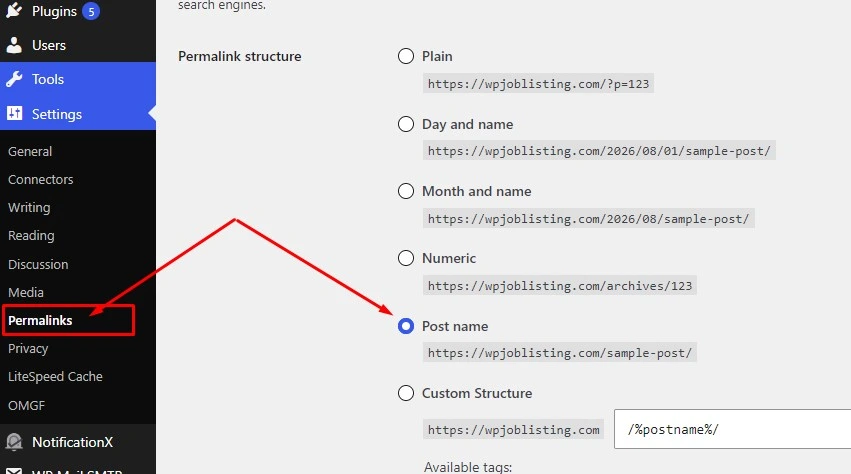
Go to Settings → Permalinks and make sure you are NOT using the Plain permalink structure. JobWP requires any permalink structure other than Plain to generate proper job detail page URLs.
The recommended permalink structure is Post name — it produces clean, SEO-friendly URLs like yourdomain.com/jobs/senior-developer/.
Deactivate and reactivate JobWP #
Sometimes reactivating the plugin forces WordPress to re-register the rewrite rules:
- Go to Plugins → Installed Plugins
- Deactivate JobWP
- Activate JobWP again
- Go to Settings → Permalinks → Save Changes once more
Check for plugin conflicts #
A conflicting plugin may be interfering with JobWP’s rewrite rules:
- Temporarily deactivate all plugins except JobWP
- Go to Settings → Permalinks → Save Changes
- Test your job detail pages
- If the 404 is gone, reactivate your other plugins one by one until you find the conflict
Check your .htaccess file #
If you are on Apache hosting, WordPress needs write access to your .htaccess file to save permalink rules. If the file is not writable, permalink changes won’t take effect.
Contact your hosting provider if you are unsure whether your .htaccess file is writable — most shared hosting providers can fix this in minutes.
Check your JobWP slug settings #
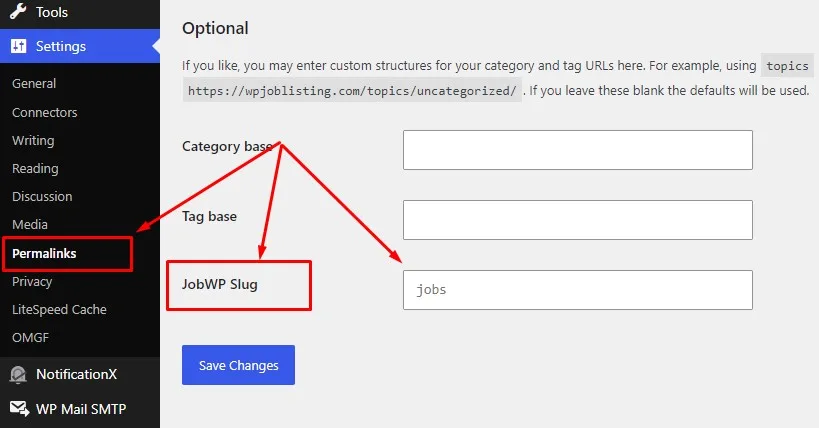
JobWP allows you to customise the job detail page URL slug. Go to Settings → Permalinks and look for the JobWP slug option. Make sure the slug doesn’t conflict with an existing page on your site.
For example if you have a page called “Jobs” at yourdomain.com/jobs/ and JobWP is also trying to use jobs as its slug, a conflict will occur. Change one of them to resolve it.
Prevention — Avoiding 404 Errors in Future #
Following these best practices will help you fix 404 errors on job detail pages in WordPress before they happen and avoid them in future:
- Always go to Settings → Permalinks → Save Changes after installing or updating any plugin that registers custom post types
- Avoid using the Plain permalink structure
- After migrating your site to a new server, always refresh permalinks as the first step
Quick Checklist #
If you’re still experiencing the 404 error after trying everything above:
- ☐ Saved permalinks at least once after activation
- ☐ Permalink structure is not set to Plain
- ☐ Deactivated and reactivated JobWP
- ☐ Tested with all other plugins deactivated
- ☐ Checked .htaccess file is writable
- ☐ Checked JobWP slug doesn’t conflict with existing pages
If all items are checked and the issue persists — contact JobWP support with your WordPress version, PHP version, permalink structure, and a list of active plugins.
For jobs that load correctly but still aren’t appearing in Google Search, see our guide on why jobs aren’t showing in Google Search.
 Download JobWP free on WordPress.org → wordpress.org/plugins/jobwp
 View live demo → wpjoblisting.com/demo
 Explore Pro plans from $49.99/year → wpjoblisting.com/pricing-faq


